Showing posts with label C. Show all posts

Tuesday, 3 April 2012

The freopen Functions in C & C++


The freopen Function.

The freopen function in the C Standard I/O library <cstdio> is a useful to redirect output destined for the stdout to a text file. I discussed how to use the fprintf function to send output to either a text file or the stdout. See here. The same result is achieved here using the printf and freopen functions.

Method 1.

freopen(Filename, "w", stdout);

There is no return value to indicate if the file was opened or if there was an error.

Method 2.

iReturn = freopen(Filename, "w", stdout);

On failure, a null pointer is returned otherwise the return value is a pointer to the file. Beyond testing for an error, this return value is used to close the file.

fclose(iReturn);

While my example uses the stdout, the freopen function can be used with the stdin and stderr objects.

 
Test Code.

I tested the functions in Visual C++ 2010 as an console application.

// The standard library includes the system function.
#include <cstdlib>

// C++ standard I/O library.
#include <cstdio>

int main()
{
     //**************************************************************
     // Redirect stdout to a file.

     // Declare pointer to the file.
     FILE* pFileHandle;
     char Filename[] = "MyFile.txt";

     // Returns null is the open failed.
     pFileHandle = freopen(Filename, "w", stdout);
     printf("pFileHandle is %X.\n\n", pFileHandle);

     //**************************************************************
     // Header.
     printf("Using freopen in C & C++\n\n");

     //**************************************************************
     // Some use of printf.
     printf("Sending the printf output to a file instead of the stdout.\n");
     printf("The freopen function allows for this redirection.\n\n");

     // Use variable for a string.
     char * Text = "A text string only from a variable.\n\n";
     printf("%s", Text);

     // Int type.
     int Salary = 375000;
     int Bonus = -35000;
     printf("Salary is: %8d.\n", Salary);
     printf("Bonus  is: %8d.\n", Bonus);
     printf("\n");

     //**************************************************************
     // Close the file.
     fclose(pFileHandle);

     // Keep console window open.
     system("pause");

     // Return some value.
     return 0;
} // end main

 Output.

Monday, 2 April 2012

The printf Function in C & C++


The printf Function.

The printf function in the C Standard I/O library <cstdio> is a useful and versatile way to send output to the stdout. Your output is a string that may include formatted variable values. The most basic form doesn't use any variables, such as:

printf("This output is a text string only. No variables.\n");

>This output is a text string only. No variable.

The next step is to include a variable as part of the output. For example,

char * Text = "A text string only from a variable.\n";
printf("%s", Text);

>A text string only from a variable.

The code %s is a format specifier for a character array or string. The %s is replaced by the value of Text. This principle applies to other data types. A decimal integer uses %d or %i.

int Salary = 375000;
printf("Salary is: %d.\n", Salary);
printf("Salary is: %i.\n", Salary);

>Salary is: 375000.
>Salary is: 375000.

The definition of the specifier is:

%[flags][width][.precision][length]specifier

The square brackets means the parameter is optional. Hence, the most basic specifier is % followed by a letter of: c, d, i, e, E, f, g, G, o, s, u, x, X, p, or n.

This blog will go through examples of these specifiers and the various parameters. Once you understand the printf function, you can apply this knowledge in using the fprintf, fscanf, scanf, sprintf, sscanf functions.


Integer Data Types.

There are three specifiers for the integer data type in decimal format (Base 10). %d and %i apply to signed integers. %u applies to unsigned integers. If you use %u with a signed integer, the output will be garbage.

Salary = -35000;
printf("Using it with a negative value: %u doesn't work.\n\n", Salary);

>Using it with a negative value: 4294932296 doesn't work.

You can use an unsigned integer with %d or %i.

unsigned ActNum = 1234;
printf("Unsigned variable works with %%i or %%d. ActNum is %i.\n\n", ActNum);

>Unsigned variable works with %i or %d. ActNum is 1234.


Width.

You specify the width the value takes up by adding a number such as %8d or %8i. Setting a width allows you to align numbers.

int Salary = 12345678;
int Bonus = 52000;
printf("Salary is: %8d.\n", Salary);
printf("Bonus  is: %8d.\n", Bonus);

>Salary is: 12345678.
>Bonus  is:    52000.

If the number is larger than the width, the amount will be displayed, but the alignment will be askew.

int Salary = 1234567890;
int Bonus = 52000;
printf("Salary is: %8d.\n", Salary);
printf("Bonus  is: %8d.\n", Bonus);

>Salary is: 1234567890.
>Bonus  is:    52000.


Alignment.

The default is to align numbers to the right. You can add a minus sign such as %-8d to specify left alignment.

printf("Salary is: %-8d.\n", Salary);
printf("Bonus  is: %-8d.\n\n", Bonus);

>Salary is: 375000  .
>Bonus  is: 52000   .


Decimal. Hexadecimal. Octal.

To output a hexadecimal numbers use %x (lowercase) or %X (uppercase). An octal can be outputted with %o. It's the lowercase letter o for octal, not zero. See more examples here.

int num = 65535;
printf("Decimal: %d Hexadecimal: %X Octal: %o \n", num, num, num);
printf("Hexadecimal Uppercase: %X Lowercase: %x \n", num, num);

>Decimal: 65535 Hexadecimal: FFFF Octal: 177777
>Hexadecimal Uppercase: FFFF Lowercase: ffff

Use '#' to add a hex or octal notation prefix.

printf("Use # to create hexadecimal prefix '0X' or '0x'. Such as %#X, %#x.\n", num, num);

>Use # to create hexadecimal prefix '0X' or '0x'. Such as 0XFFFF, 0xffff.

printf("Use # to prefix octal with 0. Such as %#o.\n", num);
>Use # to prefix octal with 0. Such as 0177777.

int * pNum = &num;
printf("It works with pointers. Such as %#X, %#x.\n\n", pNum, pNum);

>It works with pointers. Such as 0X34EDD8, 0x34edd8.


Floating-point Numbers.

Floating point numbers use the f specifier such as %f.

float irrational = 123.456789;
double irrational2 = 123.456789;
printf("Default: %f \n", irrational);
printf("Default: %f \n", irrational2);

>Default: 123.456787
>Default: 123.456789

Set shorter decimal points.

printf("4 decimal points: %.4f \n", irrational);
printf("4 decimal points: %.4f \n", irrational2);

>4 decimal points: 123.4568

Set longer decimal points.

printf("14 decimal points: %.14f \n", irrational);
printf("14 decimal points: %.14f \n", irrational2);

>14 decimal points: 123.45678710937500
>14 decimal points: 123.45678900000000


Plus or Minus.

The flag + will show a plus sign or minus sign before a number.

Salary = 375000;
Bonus = -27500,
printf("Salary and bonus: %+d, %+d.\n", Salary, Bonus);

>Salary and bonus: +375000, -27500.

Padding With Zeroes.

The flag 0 (zero) places zeroes in front of a number. It only applies if a width has been specified.

Salary = 375000;
Bonus = 27500,
printf("Salary is: %08d.\n", Salary);
printf("Bonus  is: %08d.\n", Bonus);
printf("Salary is: %0d.\n", Salary);

>Salary is: 00375000.
>Bonus  is: 00027500.
>Salary is: 375000.


Scientific Notation.

Use %e or %E with a floating point number to display it in scientific notation. A number is formatted as: x.xxxxxxEnnn. The decimal equivalent is x.xxxxxx multiplied by 10 to the power of nnn.

double Notation = 100;
printf("100 is: %E.\n", Notation);

> 100 is: 1.000000E+002.

In base 10, a number greater than zero has 1s, 10s, 100s etc. So, 100 is 1 one-hundred. A common mistake happens when a number is less than zero. 0.001 is not 1/100 but 1/1000. So, 0.1 is tenths, 0.01 is hundreds, 0.001 thousands and so on.
 
Notation = 1.0/100.0;
printf("1/100 is: %f or %E.\n", Notation, Notation);

> 1/100 is: 0.010000 or 1.000000E-002.

double LargeNum = 123456789123;
printf("Number using E: %E.\n", LargeNum);
printf("Number using e: %e.\n", LargeNum);

>Number using E: 1.234568E+011.
>Number using e: 1.234568e+011.

printf("Specify width: %15E.\n", LargeNum);
printf("Specify decimals: %.2E.\n", LargeNum);

>Specify width:   1.234568E+011.
>Specify decimals: 1.23E+011.

double SmallNum = 0.123456789123;
printf("Number using E: %E.\n", SmallNum);

>Number using E: 1.234568E-001.

The scientific notation doesn't work with integer data types.

int Num = 100;
printf("Doesn't work with integers: %E.\n", Num);

>Doesn't work with integers: 5.820601E-308.


Wednesday, 28 March 2012

Using stdin & stdout in C & C++


Normally if I wanted to send some data to the screen (the console or stdout), I'd use the printf function. Here's an example.

printf("There are %d polar bears outside your window.", BearCount);

It works great. And if I wanted to send the same information to a file, I would use the fprintf function. It works the same way except you must specify a file to use. Such as:

// Declare pointer to the file.
FILE* pFileHandle;

// Saves the file in the EXE folder.
char Filename[] = "MyFile.txt";

// Open file for writing.
pFileHandle = fopen(Filename, "w");

// Write data to file.
fprintf(pFileHandle , "("There really are %d polar bears outside your window.\n\n", BearCount);

// Close the file.
int iReturn = 0;
iReturn = fclose(pFileHandle);

What if I wanted to send the data to the screen or a file or both? While the standard I/O library creates a type FILE for handling files, it also creates the objects stdin and stdout. I can use the same fprintf function in both cases and write code to change the value of pFileHandle.

For a file,

pFileHandle = fopen(…

but for the screen use:

pFileHandle = stdout;

fprintf(pFileHandle , "Print some data to a text file.\n\n");

OR

fprintf(stdout, "Print some data to stdout.\n\n");

The same principle applies to reading data from a file or from the keyboard (i.e., stdin). I can use the fgets function for either.

From a file with,

fgets(Text, num, pFileHandle);

or from the standard input:

fgets(Text, num, stdin);

Data to a maximum length of num is stored in the character array Text.

The reason for doing this should be obvious. You can easily switch between a file or standard I/O without repeating your code.
 
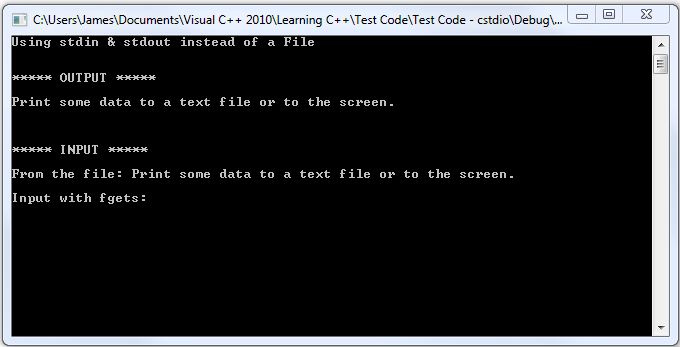
Test Code.

I tested the functions in Visual C++ 2010 as an console application.

// The standard library includes the system function.
#include <cstdlib>

// C++ standard I/O library.
#include <cstdio>

// Function prototypes.
int DataOut(FILE* pFile);
int DataIn(FILE* pFile, char* text);

// Max length of text input.
const int MAXLEN = 80;

int main()
{
     // Using stdin & stdout in C & C++
    
     // Header.
     printf("Using stdin & stdout instead of a File\n\n\n");

     // Output.
     printf("***** OUTPUT *****\n\n");

     // Declare pointer to the file.
     FILE* pFileHandle;

     // Saves the file in the EXE folder.
     char Filename[] = "MyFile.txt";

     // Open file.
     pFileHandle = fopen(Filename, "w");

     // Write data to file.
     DataOut(pFileHandle);

     // Close the file.
     int iReturn = 0;
     iReturn = fclose(pFileHandle);

     // Do the same but send to stdout.
     DataOut(stdout);
     printf("\n\n");

     // Input.
     printf("***** INPUT *****\n\n");

     // Declarations.
     char readline[MAXLEN];

     // Open file.
     pFileHandle = fopen(Filename, "r");
     // Get data.
     DataIn(pFileHandle, readline);
     // Close the file.
     iReturn = fclose(pFileHandle);
     printf("From the file: %s\n", readline);
 
     printf("Input with fgets: ");
     // Get data.
     pFileHandle = stdin;
     DataIn(pFileHandle, readline);
     // OR DataIn(stdin, readline);
     printf("Your input: %s\n", readline);

     // Keep console window open.
     system("pause");

     // Return some value.
     return 0;
} // end main

int DataOut(FILE* pFile)
{
     // Code to send data to file or screen.
     fprintf(pFile, "Print some data to a text file or to the screen.\n\n");

     return 0;
}
int DataIn(FILE* pFile, char* text)
{
     // Code to send data to file or screen.
     fgets(text, MAXLEN, pFile);

     return 0;
}


Output.


Tuesday, 27 March 2012

The fprintf Function in C & C++


You can open a text or binary file with fopen and close it with fclose. (See here.) The fprintf function allows you to “print” data to a text file. It is similar to the printf function except the output goes to a file instead of the standard output.

A note on text files versus binary files. If you open a text file with an editor program, chances are you can read and make some sense of what’s there. Not so with a binary file. The binary file is raw data in the way variables stored in memory are raw data—binary data. But text files store binary data as well, but along the way, it’s converted to a human readable form using an ASCII table or Unicode character set. So while you may write “Hello World” to a text file and see it as such, it is being converted to some binary code.

Back to the fprintf function. The same code explains it.

Test Code.

I tested the functions in Visual C++ 2010 as an console application.

// The standard library includes the system function.
#include <cstdlib>

// C++ standard I/O library.
#include <cstdio>

int main()
{
     // Header.
     printf("\"Print\" Data To A Text File\n\n");

     // Pointer to the file.
     FILE* pFileHandle;

     // Puts the file in the project path.
     char Filename[] = "MyFile.txt";

     // Version 1.
     // w attribute for writing to the file.
     // If the file does not exist, it is created.
     // Any existing file content is overwritten.
     printf("File attribute: w - (over) write\n");
     pFileHandle = fopen(Filename, "w");

     // Write data to file.
     fprintf(pFileHandle , "\"Print\" Data To A Text File\n\n");
     fprintf(pFileHandle , "Writing some data to a text file.\n");
     fprintf(pFileHandle , "Any existing data in the file is lost.\n");

     // Close the file.
     int iReturn = 0;
     iReturn = fclose(pFileHandle);

     // Version 2.
     // a attribute for appending to the file.
     // If the file does not exist, it is created.
     // Any existing file content remains.
     printf("File attribute: a - appending\n");
     pFileHandle = fopen(Filename, "a");
     // Write data to file.
     fprintf(pFileHandle , "With appending mode, text is added to the file.\n");

     // Close the file.
     iReturn = fclose(pFileHandle);

     // Version 3.
     // What happens when you try to write data to a file opened for reading.
     printf("File attribute: r - reading\n");
     pFileHandle = fopen(Filename, "r");
     // Write data to file.
     fprintf(pFileHandle , "With reading mode, text isn't added to the file.\n");
     // There is no run-time error or compile error.

     // Close the file.
     iReturn = fclose(pFileHandle);

     // Keep console window open.
     system("pause");

     // Return some value.
     return 0;
} // end main


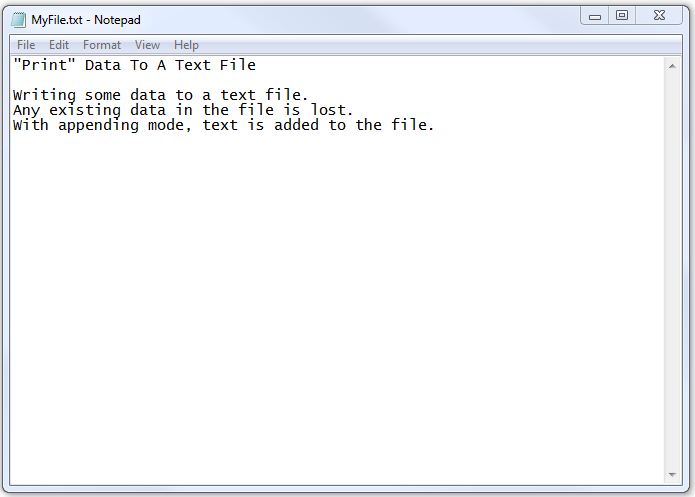
Text File.


Monday, 26 March 2012

A Common Error In C & C++


In C and C++ there’s a difference between the = assignment operator and the == logical equality operator. In many other languages, the equal sign is used in both situations; therefore, it’s easy to use = when you want to use ==.

You compiler won’t tap you on the shoulder to tell you made a mistake. It will happily chug along. There is no syntax error. The problem happens when you run the program. Besides, assigning the value to the variable, I tested some code to see what would happen.

Take this scenario.

     int a = 0;
     if (a = 1){…

First the program will assign 1 to a then it will evaluate the expression a as being non-zero (i.e., not false) and execute any code for the true condition.

This code

     if (a = 0){…

assigns zero to a and results in a false condition.

Similar events happen with the do and while loops.

How about a for loop like this?

     for (i = 0; a = i; ++i) {…

Since a equals i equals 0, it’s false and the for loop doesn’t execute any code under its control.

On the other hand, this code,

     for (i = 1; a = i; ++i) {…

creates an infinite loop. Be ready to hit break.

It’s the easiest mistake to make in C and C++ especially if you’re working with other languages at the same time.